 ClearPix
Remove a photo background and replace it
ClearPix runs U²-Net once after you upload a photo and click Remove background, then lets you composite on the result page without another inference. Keep transparency, choose a preset or custom color, or add a local image background. Export stays at the original size, with image backgrounds fitted using cover. Both files remain on your device. The tool does not match perspective, lighting, or shadows, and difficult edges may remain visible.
Turn a local cutout into a finished composite without uploading either image. U²-Net runs once after you click Remove background; transparent, color, and local-image backgrounds then update in real time at the original canvas size.
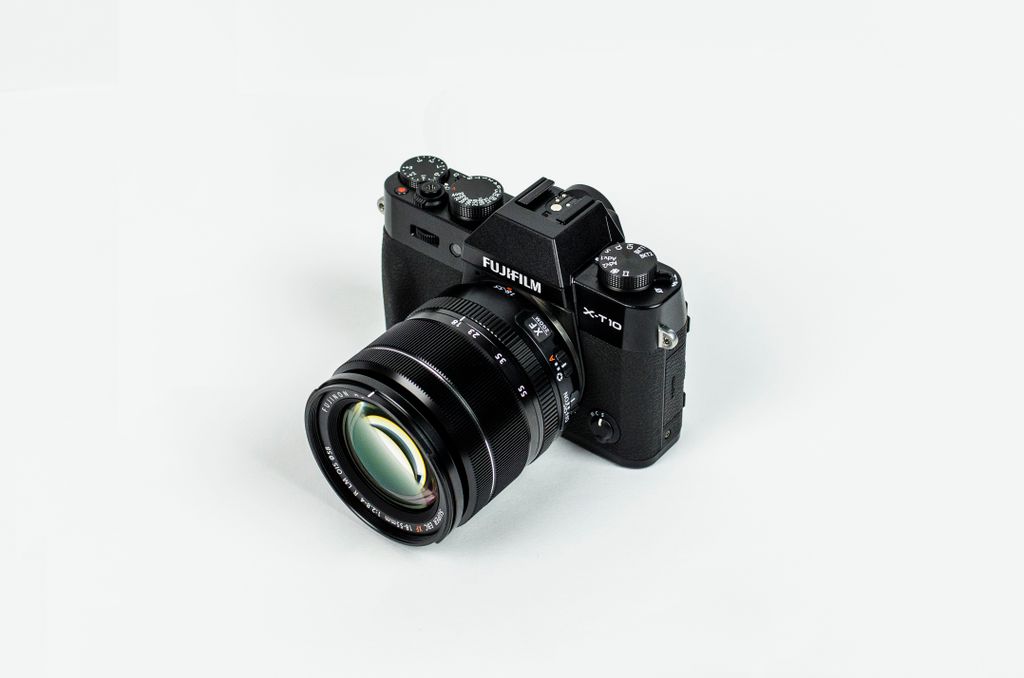
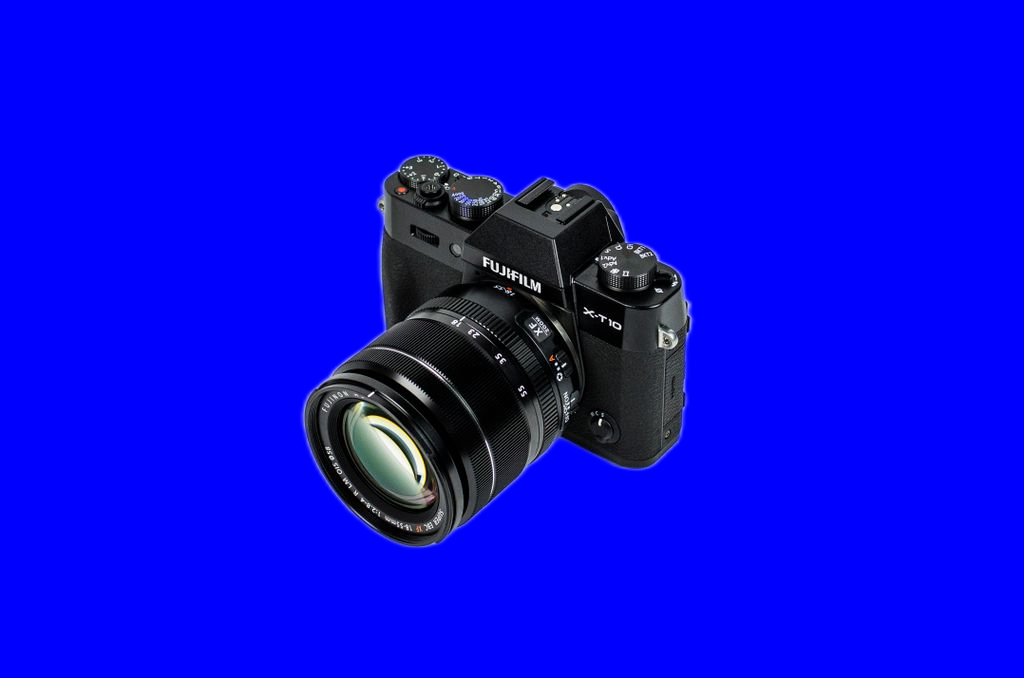
Real Pexels product photo and ClearPix U²-Net blue-background composite, not a user file.
Drop your image here, or click to browse
PNG / JPG / WebP — up to 20 MB, 6000 px on the longest side, and 16000000 pixels total · You can also paste an image (⌘V)
What can you do after removing a background?
Create clean product images or export a transparent PNG for design, compositing, and other creative work. This general page does not add replacement backgrounds or apply ID photo dimensions.
Background removal FAQ
How do I remove a background from a product or portrait photo?
Drop in your image and press Remove background. The cutout runs locally in your browser, and you can then export a transparent PNG.
What image formats and sizes are supported?
PNG, JPG and WebP are supported. Files can be up to 20 MB, with a longest side of 6000 px and no more than 16000000 pixels in total. If your image exceeds any limit, resize it before processing.
Are my photos uploaded for background removal?
No. Your image is read and processed on your device, and the cutout is created locally. Nothing is uploaded to a server for processing.
Can I replace the background or make an ID photo here?
This general page only removes backgrounds and exports transparent PNGs. For a replacement background or document-sized ID photos, use the dedicated background-replacement or ID-photo scenario page. Check the current official rules before submitting an ID photo.
Only process images you own or have explicit permission to modify.
How it works
Upload and click Remove background
Drop a PNG, JPG, or WebP with a clear main subject, then click Remove background to run U²-Net once, with no mode selection.
Choose the replacement
On the result page, keep transparency, select a preset or custom color, or choose Custom image and add a local PNG, JPG, or WebP background.
Adjust the original-size composite
The canvas stays at the source dimensions and background images use cover fitting. Background changes recomposite instantly without rerunning U²-Net.
Review the composite and export
Compare the cutout with the source, inspect edges and cropping, then download a transparent PNG or a flattened PNG, JPG, or WebP at the original size.
Recommended settings
- • Review the U²-Net cutout before adding a busy or contrasting background.
- • Use a high-resolution replacement image with an aspect ratio close to the original canvas.
- • Inspect edges, cover cropping, lighting, and shadow realism before exporting.
What to expect
- • The composite does not automatically match perspective, lighting, color, or realistic contact shadows.
- • Only original-size output is available; custom backgrounds are cover-fitted and cannot be positioned independently.
- • Incorrect alpha edges can become more visible against a contrasting or detailed replacement.
Your file never leaves your device. All AI processing runs locally in your browser on your own hardware — there is no upload, no queue, and no copy stored on any server. You can disconnect from the internet after the page loads and everything still works.
Frequently asked questions
Can I use my own image as the new background?
Yes. Choose Custom image and select a local PNG, JPG, or WebP. It is fitted with cover behavior behind the cutout at the original output size, so parts of the replacement can be cropped when its aspect ratio differs from the source canvas.
Does ClearPix match lighting, perspective, or shadows?
No. The tool places the cutout over the selected background but does not relight the subject, reconstruct a scene’s perspective, or synthesize realistic contact shadows. Review whether the composite looks credible for your intended use.
Can I change the background to any color?
Yes. Use one of the available presets or the custom color picker. A colored or image background produces a flattened composite; choose the transparent option instead when you need alpha in a PNG. Changes preview in real time without another inference.
Can I choose an ID photo or another output size?
No. This workflow exports only at the original size, with no ID-photo or other dimension presets. Image backgrounds are cover-fitted at that size.
Are either image uploaded?
No. Both the foreground source and replacement background remain on your device throughout U²-Net inference and composition. Model and runtime files are downloaded and cached, but ClearPix does not receive the images for processing.